
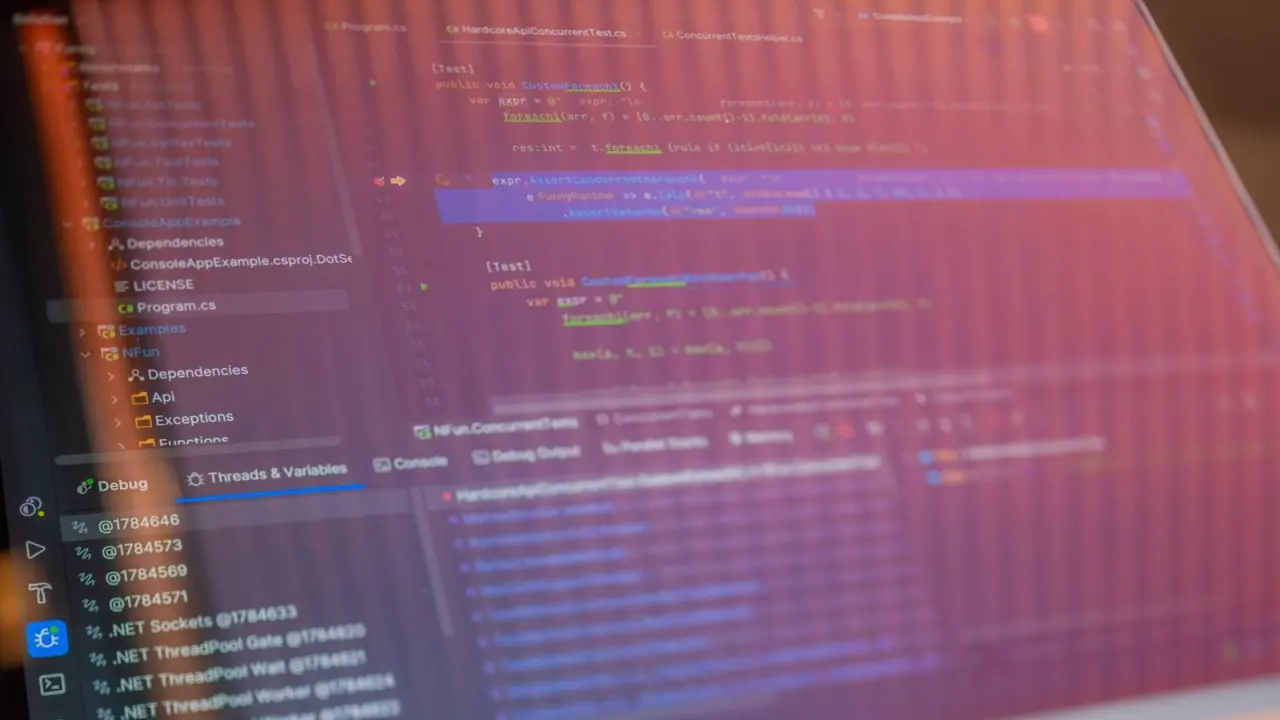
Wondering what is a linter and whether your project needs one? A linter is a program that scans your source code and reports problematic patterns, without running it. It helps you catch mistakes early.
This guide is part of our wider look at software development best practices, and it covers the basics of linting.
| Item | Value |
|---|---|
| Type of analysis linting belongs to | Static analysis (code is not executed) |
| ESLint first created | June 2013 |
| Severity levels for an ESLint rule | Warning or error, set per rule |
| TSLint status | Deprecated in 2019, repository archived in 2021 |
| ESLint core formatting rules | Deprecated in v8.53.0 |
Figures come from the ESLint project’s About page and the CodePath linting guide. They can change, so check the source before you rely on them.
What a linter does
Zulip’s documentation describes a linter as a program that runs on the source code of software and reports potentially problematic code to the user, as set out in the Zulip linting documentation. Think of it as an automated reviewer that reads your files before a person does.
Linting is a type of static analysis, which means the checks happen without executing your program. The ESLint project explains that JavaScript is a dynamic, loosely typed language and so is especially prone to developer error, and that linting tools let developers find problems without running the code.
The CodePath guide explains the mechanics: a linter parses your code into an Abstract Syntax Tree and runs a set of rules against that structure. Each rule is usually tailored to one specific check, such as an unused variable.
In ESLint, every rule can be set individually to a warning or an error. According to the LogRocket ESLint adoption guide, a CI/CD pipeline can fail a linting step when errors point to a larger problem.
The CodePath guide lists the kinds of issues linters can detect:
- Syntax errors and code likely to cause runtime errors.
- Code style issues such as inconsistent spacing or missing semicolons.
- Potential bugs like unused variables or unreachable code.
- Security vulnerabilities and unsafe patterns.
- Accessibility issues in user interfaces.

Linters, formatters and type checkers
People often mix these tools up. GitHub’s ReadME guide says most static analysis tools fall into one of three categories, described in the GitHub guide to formatters, linters and compilers:
- Formatters reformat code for stylistic consistency without changing how it behaves.
- Linters detect stylistic inconsistency and also potential logical bugs, and often suggest fixes.
- Type checkers warn you about possible incorrect uses of your code.
The same guide notes that formatters do not alter the behavior of your code, which is what sets them apart from other static analysis. It names Prettier as the most commonly used JavaScript formatter.
Testing is a different thing again. Unit, end-to-end and other forms of testing check whether running your code produces the expected results, so the guide classes them as dynamic rather than static analysis.
The line between linting and formatting has shifted over time. The CodePath guide says ESLint deprecated its core formatting rules in v8.53.0 and that the team recommends a dedicated formatter such as Prettier for style. A shared code style guide is still worth writing down, because it tells both your formatter and your linter what to enforce.
Why linters matter for a team
The main payoff is early feedback. The CodePath guide describes linters as flagging issues as you write code, which can mean fewer bugs reaching production and less time spent debugging.
Other benefits show up once more than one person touches a codebase:
- Consistency: the same rules apply to every contributor, so files read alike.
- Learning: newer developers get immediate feedback and explanations of why a pattern is problematic.
- Better reviews: CodePath notes that reviewers can focus on architecture, logic and design instead of formatting and syntax.
Linting supports readable code but does not replace the habits behind it. If you want the bigger picture, read our guide on how to write clean code alongside your lint rules.
Editors can surface the results too. JetBrains documents that PyCharm integrates with ESLint and other popular JavaScript linters, reports errors and warnings, and suggests quick-fixes where possible, as described in the PyCharm linter documentation.
Popular linters by language
Most languages have a linter of their own. The ESLint project notes that there are code linters for most programming languages, and CodePath lists some well-known ones.
- JavaScript: ESLint, which CodePath calls the most widely used JavaScript linter.
- TypeScript: typescript-eslint, the ESLint-based linter for TypeScript.
- CSS: Stylelint.
- Python: Pylint and Flake8.
- Ruby: RuboCop.
- PHP: PHP_CodeSniffer.
- Swift: SwiftLint.
Tool landscapes change. CodePath records that TSLint was deprecated in 2019 and its repository archived in 2021, which is why typescript-eslint is the route it points to for TypeScript.
ESLint is built to be extended. LogRocket says it was created because earlier tools such as JSCS, JSLint and JSHint were rigid in their rule sets and configuration. The ESLint project says all of its rules are completely pluggable, and GitHub’s guide says it ships with several hundred built-in rules and accepts community plugins.
How do you start using a linter?
The steps below follow the ESLint workflow described by LogRocket and CodePath. Other languages have similar setups, so check your tool’s own documentation.
- Add ESLint to a project that already has a package.json by running npm init @eslint/config@latest, which starts an interactive installation guide.
- Answer the wizard’s questions about your project, such as which framework you use and where your code runs.
- Run npx eslint to lint all files recursively, or name a specific file.
- Read the reported violations, then fix them by hand or apply an automatic fix where the rule offers one.
- Optionally turn on auto-fix on save in your editor settings, and add a linting step to your CI pipeline.
CodePath adds that the current wizard no longer asks about style guides, because ESLint focuses on catching problems and leaves code formatting to a dedicated formatter such as Prettier. Pair the two tools rather than expecting one to do both jobs.
Where linters fall short
A linter reports what its rules describe, nothing more. It cannot tell you whether your program does what users need, which is why testing remains a separate step.
False alarms happen too. Zulip’s documentation says its linters occasionally complain about things that are more an artifact of the linter’s limitations than a real problem with your code.
The ESLint project says each rule can be turned off or on, so a team can drop a rule that does not fit. Treat that as a conversation to have with your team, not a reason to switch linting off.
Frequently asked questions
Is a linter the same as a formatter?
Show answer
No. A formatter only changes presentation, while GitHub’s guide says a linter also detects potential logical bugs and often suggests fixes. Many teams run both.
Does a linter run my code?
Show answer
No. Linting is static analysis, so it examines your code without executing it, according to the ESLint project.
Can a linter replace testing?
Show answer
No. GitHub’s guide classes tests as dynamic analysis because they check what running your code produces, while linters only inspect it. The two catch different problems.
Can a linter fix problems automatically?
Show answer
Sometimes. LogRocket explains that some rules provide fixes that ESLint can apply from the command line or your editor, while others only suggest how to fix a violation by hand.